A focused Kindle dashboard
Give your dashboard the whole Paperyx view.
Choose Full screen in the Dashboard toolbar to hide Paperyx navigation and leave your configured dashboard content on screen.
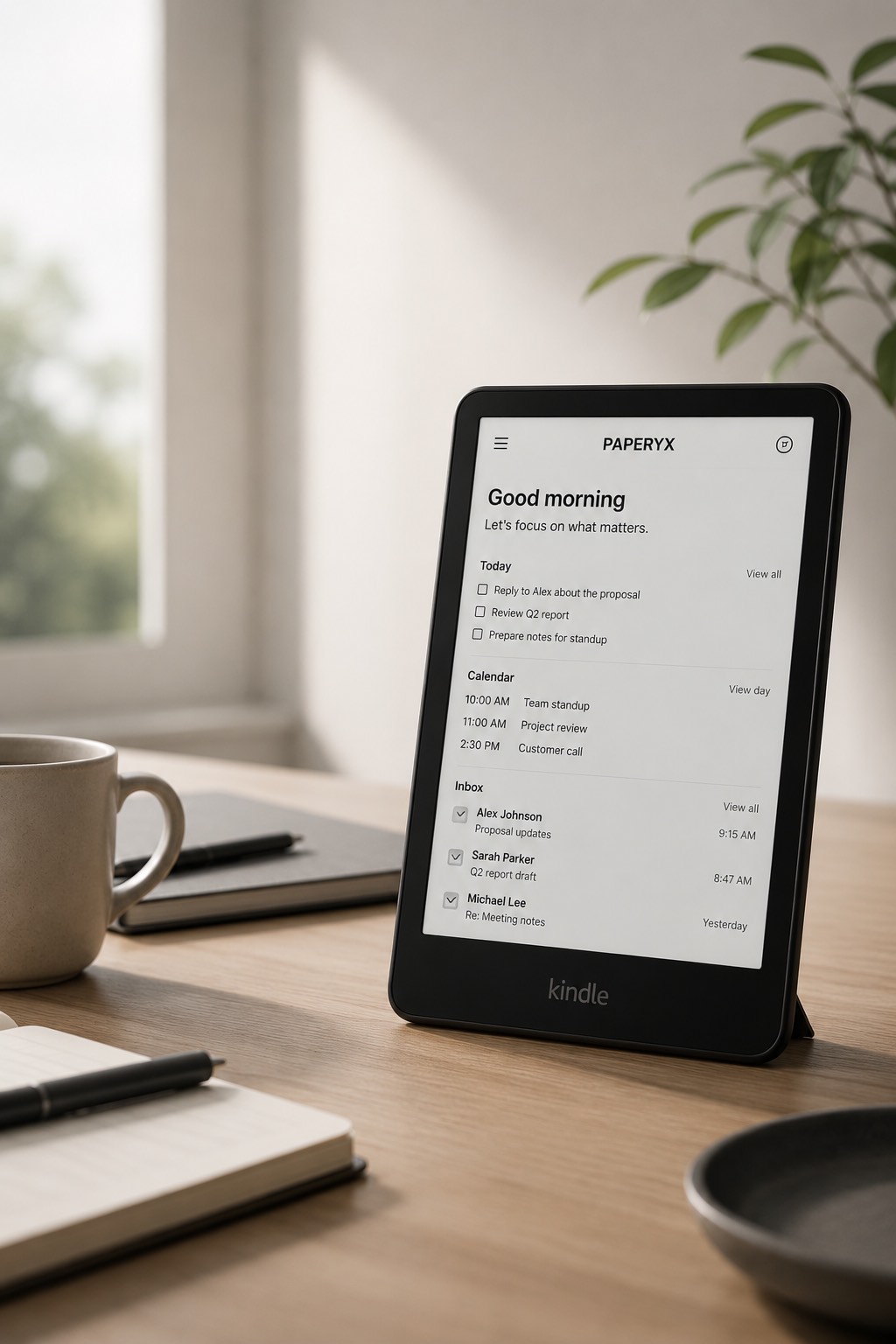
Designed for slow, reliable e-ink interaction
- Works as an ordinary server-rendered link without JavaScript.
- Retains the current dashboard layout and every supported pane size.
- Preserves timed dashboard refreshes while presentation mode is open.
- Keeps the current Photo Slideshow starting position instead of choosing another photo.
- Provides a large floating Back icon in the lower-right corner.
- Remains readable in light, dark, monochrome, and Colorsoft display modes.
What full screen means
This mode removes the Paperyx toolbar, navigation, and other Paperyx page chrome. A website cannot reliably hide the Kindle Web Browser's own controls without depending on browser-specific JavaScript, so those browser controls may remain visible.
Use the floating Back icon to return to the standard Dashboard view. Opening a widget still follows its normal link to the corresponding Paperyx app.
Open your dashboard
Open Dashboard, choose the Full screen icon in the top toolbar, and use the lower-right Back icon when you want the standard controls again.