Current Time for the Paperyx Dashboard
Put the time and date where your Kindle can stay useful.
Add Current Time to any dashboard pane, choose an analog or digital clock, and see the date arranged for the available e-ink screen space.
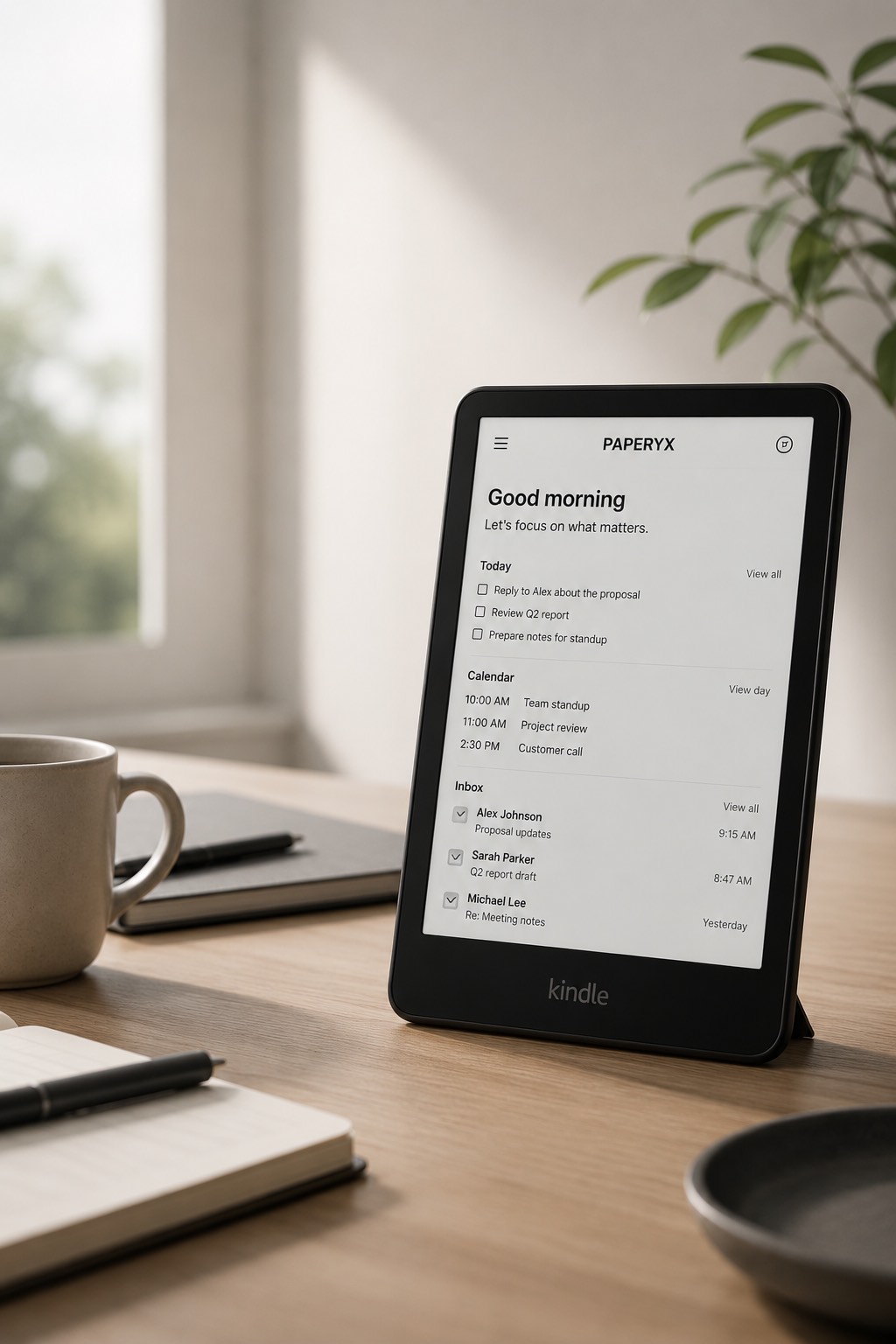
A clock that fits every pane
- Use Current Time in one-third, one-half, or full-width panes at every dashboard height.
- Show a simple analog face or a large digital time.
- Use 12-hour time with AM or PM, or the saved 24-hour setting.
- Show a compact culture-formatted date in tight panes and the full localized date when space allows.
- Use the timezone already selected in Paperyx settings.
- Tap the widget to open World Clock.
Designed for server-rendered e-ink pages
The clock does not depend on JavaScript or a continuously running animation. A dashboard containing Current Time uses a full-page refresh interval no longer than one minute so the displayed minute remains current. If a Photo Slideshow widget uses a shorter interval, that shorter dashboard refresh continues to take precedence.
The analog clock shows hour and minute hands without a moving second hand. It is intended for a calm glanceable display, not second-level timekeeping. Kobo firmware 4.x receives a plain text time fallback when its browser cannot reliably render the clock face.
Uses your existing display choices
Current Time follows the World Clock style and time-format settings, along with the general Paperyx timezone and language. Changing those settings updates the widget on its next server refresh.
Add Current Time
Open the Dashboard designer, choose any pane, select Current Time, and return to the dashboard.